
Home About Meet Contact
Showing posts with label blog design. Show all posts

Friday, May 31, 2013

Some Favorite Blogs: Part 1

Sometimes a blogger needs inspiration. Actually, to be completely honest- I should say, "You, as a blogger will always need inspiration!" Your brain can only do so much on its own before you need to refuel it by looking at some pretty nifty blogs across the web!

I personally, try to refuel once a week (but that's just me)- usually on a Saturday morning when I really can't get much work done. I usually have a good hour or two of quiet before the weekend starts with my husband- so this is the perfect time to browse through my favorite blogs (and Pinterest), find inspiration, pin certain ideas or loves, and then digest it all, the following two days while I'm off.

Because I'm a food blogger mostly, my blog loves are usually going down that road. But I love to gander through home and DIY blogs, as well as just "pretty to look at" and design-focused blogs.

Do you need inspiration? Are you feeling like you could use a few new blogs to frequent so your brain can refuel? Here are just a few of my absolute favorites!

INSPIRATION BLOGS

These are the blogs I look at and usually sigh with relief. They're my "pretty to look at" and "find big time inspiration" blogs. 

Creature Comforts not only blogs about delicious color combinations, but she also showcases pretty neat gift ideas, simple DIYs, and all around gorgeous photos to excite your creative brain. 

Love & Lavender was one of the first blogs I started following. I just love them. True, when I first started following I was a newlywed, and so all things wedding were my cup of tea- but I just can't seem to NOT come back again and again. They post some of the most beautiful wedding (and party) ideas!

Wit & Whistle is such a gorgeous blog. It's simple, tidy and pretty to the point. Amanda has a knack for creating art and crafts that are sure to ignite your creativity. Plus her greeting cards are a crack up! Truly one of a kind.

Rebekka Seale is another blog I follow because it calms me and yet sparks my creativity at the same time. Her whole aesthetic is simple, yummy, and absolutely gorgeous. There's something about the way she writes that's like a lullaby- it's soothes me. Plus her pictures! Oh her pictures! I just love them. (She also posts some amazing recipes as well!)

I think I have a simple/gorgeous aesthetic theme going on here- Bleubird follows suit with the last two blogs mentioned. Gorgeous pictures, neat DIYs, simple recipes....just lovely.


HOME, DECOR + DIY BLOGS

These next few blogs are the ones I go to when I'm looking to accomplish something in particular, looking for a craft idea, wanting to learn how to do something for my home, easily...need a blog design element tip, a blog "how to", etc.

Hank & Hunt is a great source for simple party DIYs (and I mean GREAT source) and amazingly gorgeous fonts!

Oh, Hello Friend is another blog I've followed for a LONG time. I even call Danni my friend now. Awwwww. She's so very talented when it comes to DIYs, packaging ideas, and gorgeous design elements. Plus she has a brand new shop where you can buy things like washi tape, rubber stamps, and all things cute + packaging + gift ideas + office stuffs!

Kevin & Amanda is pretty much my number one choice for blog design and just plain "blog" help. If you've got a weird question, they've most likely already answered it, in blog post form.

Lovely Indeed is a great source for simple (yet awesome) DIYs for the home, gift ideas, and for parties. Plus Chelsea uses such gorgeous color choices for all her crafts and does a lot of travel talk as well! I love this blog as much as I love her quirky (funny as heck) personality.

Apartment Therapy and Design*Sponge are both blogs I visit when I want to get inspired to change something in my home. Great place to see "small space idea solutions", as well as crafts on the cheap, real people's design ideas, and all things artsy!

FOOD + BAKING BLOGS

Be still my heart. My favorite category of all. (Surprised?) These are some of the blogs I frequent when I need some kitchen inspiration. And boy do I leave inspired!

Deliciously Organic is amazing. The end. Carrie is one of the sweetest and most down to earth food bloggin' gals I know. She specializes in all things organic (duh!), as well as gluten free and Paleo. 

The Faux Martha's whole aesthetic just kills me- I'm so in love with it. Her pictures make me swoon each and every time. From good 'ol mac and cheese to upscale dutch oven bread- her recipes never disappoint. They're easy and oh so yummy!

Love & Olive Oil is (again) another blog I've followed for a long time. Lindsay and Taylor have some serious talent! Every recipe makes my mouth water and their pictures are seriously amazing. Having already put out a cookbook, and currently working on a second, they're a great recipe "go to" source! Plus they love cats. And I love cats. So that's awesome.

Elana's Pantry is a new one for me, but I'm already in love! A friend recommended it to me when I mentioned I was looking to eat less starch and gluten. Elana's got you covered! Focusing on strictly gluten free, it's a great place to find recipes that are yummy (I've tried a few) and easy to make! Plus I love that she doesn't ONLY use those expensive gluten-free flours! Win!

Oh, Ladycakes is just like The Faux Martha- I just love them to pieces!!!!! Love their look, love their recipes, love their pictures!!! Some creative cats we have here (see what I mean about the cat thing?) Although Oh, Ladycakes focuses also on gluten free and mostly vegan recipes ;) Don't let that stop you though!

Hope you're all seriously inspired! What are some of your favorite blogs out there?

Pin It

Tuesday, May 21, 2013

Blog Design: 25 Free Social Media Icon Sets


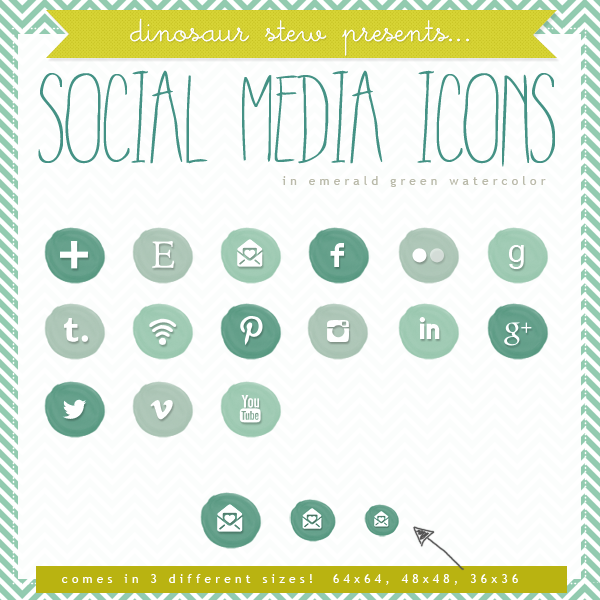
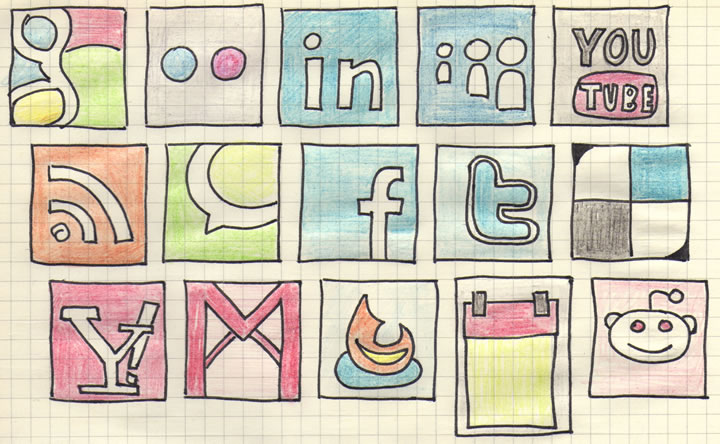
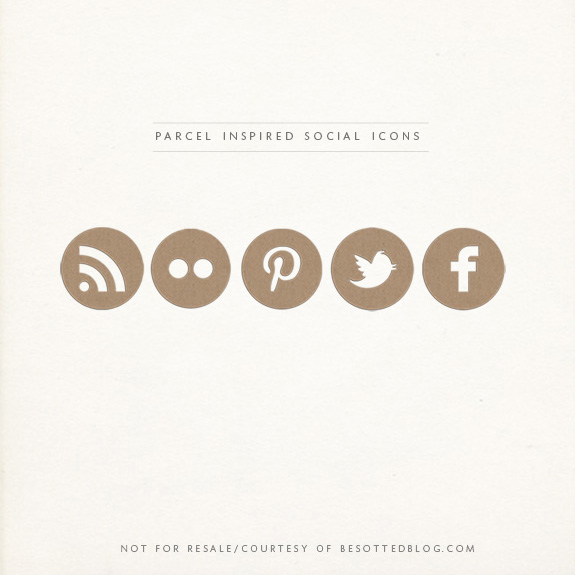
We talked in a previous post about how there are thousands of free resources on the web that you can use to make your blog your own. To delve into that a bit more, I've rounded some 25 FREE social media icon sets that will make your site look like the bomb-dot-com. Check out the aforementioned post for even more free icon sets and design resources!


PHEW! That's a lot of icons!

Let us know if you end up using these icons on your site! And as always, if you do, make sure to give credit to the original sources and if you pin the sets, PLEASE pin from the original source too! Only pin the title image from this post - we want to make sure we direct traffic to the designers for all their hard work.


Pin It

Friday, May 17, 2013

How To: Add a Search Bar on Your Blogger Homepage...and Why You Should.

Search Bars! Search Boxes! What the heck are those and why on earth would I want one on my blog?! Aww friend, I am SO glad you asked! Let me tell you all about this fun lil thing.

Search Bars/Boxes- What are they?
Simply put, a search box/bar works the same as any other search engine would (Ahem...Google, anyone?) except it's on YOUR BLOG and searches through YOUR STUFF! Wheeeeeeeeee! We like that.

For any Blogger users out there, this is in the form of a "Gadget", and is something we can SIMPLY add to our blog to give it a bit more blinggy-bling. 

Why Should I Have One on My Blog?
Well, there's a couple of reasons! For one, functionality! This little Gadget-O-Love adds a lot of functionality to your blog. It enables readers to search through all of your hard work and find exactly what they are looking for.

Why is that important? Because if any readers out there are ANYTHING like me, they don't have a lot of time to scroll through each and every post you've ever written until they find what they're looking for. They'll most likely give up along the way and go somewhere else (GASP!) to get their info. We definitely don't want that.

So, by adding a Search Bar/Box you are saying to your devoted readers, "Hey, I get it...time is money. Why not type in exactly what you're looking for and be on your merry way?"

That's exactly what it does. It creates a little internal search engine within your blog! So now, anytime you've tagged a post (I hope you're making precise tags within each blog post you publish) those tags get stored in your search engine. So let's say Sally loves your blog, is trying to do something she knows she's seen posted before, but can't remember when. By having a Search Bar/Box all she needs to do is kind of know what it is she's looking for (maybe..."fun fonts for free"), type those words into your bar, and hit enter. Your internal search engine will now do the work for her! It will search through each and every post you've written, and then bring up a nice little tidy list of previous blog posts that has something to do with her key words!

So instead of 700 posts, she now only has to go through a couple. Usually the search engine is so smart and precise, that it narrows it down to only 3-4. Badda Bing, Badda Boom. 

In essence, a Search Bar/Box makes your blog work the way it should, as well as making it engaging and helpful. This keeps your readers coming back time and again.

So now, How Do I Add One to My Blogger Blog?
Easy Peasy! Just follow these steps and you'll be there in no time at all :)


1. First and foremost, make sure you are signed into your Blogger account. Once you are, you're going to go to your blog's homepage and click "Design"- which is up on the top right!


2. By clicking "Design" you are able to see your blog's inner core- where you can do any and all changes you might want to make. There are so many lovely things you can do in this place, so play around! 

For our purposes we will need to find "Layout" and click it.


3. Next, you'll see you're now able to see your blog's "skeleton" (in a sense). This is an outline of what you have on your blog, where everything you've added is placed, and an easy way to make any changes- like moving something around, deleting something, or adding on.

Find where you want to add your new Gadget (a Search Bar/Box is indeed a Gadget!)- this place doesn't have to be exact- but has to be around where you're thinking of having it go. I suggest having a search bar somewhere close to your main information on your home page (i.e.: profile pic, social media, etc). We can move the Search Bar around once it's installed.

Click "Add a Gadget".


4. Now we are seeing a list of all the different Gadgets available on Blogger! There's some neat ones there, so look around! You might find something you didn't even know you could do! As you can see, Blogger lets you know what's already been installed by simply saying "Already Added" on the right side of each Gadget.

Scroll down until you find, "Search Box" and click the little "+" on the right. This adds it to your blog!


5. Now we need to simply configure our Search Bar/Box. All this means is we're going to make it do exactly what we want it to do.

A. Here you can title whatever you want your bar to be. Keep in mind that this "name" will show up on your blog for all to see. You can also leave it blank should you choose.

B. Make sure this box is checked! This allows people to type in key words (i.e.: How To, Blog Design, Blog Help...) and your Search Bar will search ALL throughout your blog's posts for any post related to those words! Neat huh?

That being said, I personally want the Search Bar to ONLY search my blog, so I unchecked the following two boxes. I don't want people seeing results from anywhere else, other than my blog :)

C. Here is where you will see a nice little preview of what your Search Bar will look like :)

D. When you are satisfied, click "Save". This will apply those changes to your Search Bar/Box.


6. Now as you can see we're taken back to our blog's skeleton. And, as you can see in A. our Search Bar is automatically up at the very top of my Gadget list. I'm not happy with it being there, so to move the box around all I need to do is click and hold down on the box, and drag to where I want it (within that area). Usually just up and down. If you're wanting it somewhere completely different, you'll need to delete (by clicking "Edit"), delete the Gadget, and start over someplace else on your skeleton.

B. When you think you know where you want it, click "Preview" to be shown a mock-up of what your blog will look like once you hit "Save". Click out of that box and come back here to make changes. I usually have to "Preview" 3 or 4 times before I've got it right.

C. Again, once you're happy with your placement, click "Save Arrangement"!


7. Viola! When I go to my homepage, displayed in all it's glory is my new Search Bar/Box! It's easy to see (up towards the top) and is titled appropriately (so my readers know what it is).


8. Here's how it works! Let's say you want to find an old blog post, or your reader really needs to know how to do something: Just type in the key words into your Search Box and BOOM a beautiful list of ANY and ALL YOUR BLOG POSTS that include those words, shows up! 

Neat. Tidy. Easy. That's what we like!
Pin It

Tuesday, May 14, 2013

Introduction to Wordpress

Image and video hosting by TinyPic
It may seem odd that I am using Blogger to talk about WordPress, but all of us at B.You thought it would be a great idea to diversify the content of this site and provide information to you both for Blogger and WordPress. It seems foreign for me to be typing a post in Blogger because all I know is WordPress. I can't say that I have a preference for one or the other because I am not familiar with each of them on the same level, so I will stick to what I know and tell you a little bit about WordPress. I started my blog on WordPress.com back in February. There are two different ways to start a blog through the WordPress publishing application. One way is through their dot com site. This is the approach I took when I started. There are many benefits to this approach. First of all, it is free ninety-free. Who doesn't like free stuff?! Secondly, it gives you the option to publicize your posts on multiple different social media sites (e.g., Facebook and Twitter). And, my favorite part is that you can track your stats within the application through the built in "site stats" page. 

The other approach to starting a site with WordPress is for more advanced users (in my opinion). It involves downloading the software and signing up for website hosting. This is done through a web hosting service. There are many hosting companies out there. Do your research before you sign up with one. Web site hosting will usually run you between $4 and $8 per month, and many companies offer free trials. If you choose this route, you have more options for customizing your website. It is more work for sure, but the benefit is that you have full control of your content, your design, and your space on the internet. The WordPress platform is the industry standard and is used by many businesses and bloggers. With this option, you will be able to advertise on your blog, whereas you do not have that capability through the dot com option.

I want to touch on design for a second. Both options allow you to choose a pre-designed template for your site; however, with the dot com option, you can only customize a few things within the template, so what you see is pretty much what you get. However, with the self-hosted option, you have the ability to edit the coding of the template to change way more stuff. This is part of the process that will take more advanced knowledge to navigate through or you can hire a web designer to create your site if you don't have the desire and/or time to design it yourself.

So, in the end, the best thing to do before starting a blog with WordPress is to decide what you want to accomplish with your blog and how much time you want to put into it. If you just want a place to share your thoughts with others and do not have much time to dedicate or money to put into it, the dot com option may be best for you. If you want to have a place that feels more like your own and you don't mind spending hours of your time creating your space to be exactly how you want it (or hiring a designer), then you might want to check out the self-hosting option. 

I know this is a lot of information and it may be a bit confusing at first, but if you are really interested in starting your own blog, I urge you to do your research and find out which option best suits your needs. I started with the more basic dot com option. I love it, and it was great for me for a while, but I found that I wanted something that felt more like my own, something that I could call mine and mold into my happy place. So right now I am in the process of transitioning to a self-hosted site using the WordPress software. It has taken me countless hours to design the site because I have had to learn so much along the way. It will take me many more hours to finish it, but it will be mine and it will be worth it to me

Image and video hosting by TinyPic
Pin It

Tuesday, April 30, 2013

Some Favorite Fonts: Part 1

I don't know what happened, but all of a sudden I've become utterly obsessed with fonts and all things typography!

I notice gorgeous eye catching fonts everywhere! Magazines, books, posters, stores, packaging- it's kind of all I see! I've even, hehe, said aloud once or twice, "Hey, that's the __________ font!" Oh boy.

What?!?! Who have I become? My husband, that's who. He's obsessed with typography- actually requested (and received) a book for his birthday last year FULL of nothing but 60's and 70's popular fonts. I laughed at him then. Now...I merrily stick my foot in my mouth.

Either that, or I've become a genuine blogger. Yeah, I guess that's more fitting. Bloggers LOVE fonts! The more fonts one has, the merrier! What better way to vamp-up your cute blog post pictures than with some snazzy fonts! And I have a blog. So, according to grade school mathematics:

(Me + Love of Fonts) + Owning a Blog Myself = A Bonafide Blogger

Anyway, now if you're anything like me, you fiend for new fonts. You search the web and Pinterest for any font you can get your hands on. Even more, you giggle with delight at FREE new fonts. Squeal!

Well friend, you're in luck! Luck, I say! Here are some of my favorite fonts- fonts that you most likely have seen time and time again on my blog! Oh, and yeah- they are totally free for all your blog picture bedazzling fun!


Pin It

Friday, April 12, 2013

How To: Remove the Blogger Picture Shadow

I don't know about you, but one of the first things that needed to go when I first started my blog, was the weird little shadow that formed behind every picture!

I mean, don't get me wrong- I LOVE BLOGGER and will forever hold them close to my heart. For the most part they are easy to use and just plain awesome! But that one little tick- that darn shadow...just BUGGED ME!

If you just cannot climb in the same boat as me- no problem! No harm and no foul. Totally get it. But if you are sitting at your desk, hanging by the edge of your seat, going, "YES YES YES!" then this blog is for you. How to remove that silly little shadow around all of your images.


So as you can see, our blog images (and some images elsewhere) did indeed have that little bugger. I mean, I guess it's not the stupidest thing...but it sure bugged me! You Sir, gots to go!

This trick is like, SUPER DUPER simple. I promise. But I do need to say- this trick is (of course) only for Blogger users AND those that are using the SIMPLE VIEW template. So, if you're using DYNAMIC VIEW, this won't work. Also, my step-by-step will be using the new blogger interface. By "new" I mean the one you probably already have- because it was available back in like...2011 or something. 

Ok! Moving on!


1. Make sure you are signed into your blog. You can tell if you are by looking at the top right corner. On your blog's homepage, click on DESIGN.


2. Next, you're going to click on TEMPLATE on the left hand side.

3. Once that has been clicked, find the CUSTOMIZE box and go ahead and click it.


Notice, here is a great way to tell if you're using the SIMPLE template or another one. As you can tell, we are indeed using it!

4. Since we're good to go, on the left hand side, find ADVANCED and click.


5. A little scroll box will show up directly to the right. Scroll down until you find ADD CSS and go ahead and click that.


6. Next, a white box will appear. In that box copy and paste this code EXACTLY:

.post-body img, .post-body .tr-caption-container, .ss, .Profile img, .Image img,
.BlogList .item-thumbnail img {
  padding: none !important;
  border: none !important;
  background: none !important;
  -moz-box-shadow: 0px 0px 0px transparent !important;
  -webkit-box-shadow: 0px 0px 0px transparent !important;
  box-shadow: 0px 0px 0px transparent !important;
}

Easy right? Once your code is pasted, make sure to hit ENTER after the last character, "}".


7. Once the code is pasted and you've hit enter after the last character, go ahead and click APPLY TO BLOG. If you're nervous it didn't work- you will immediately notice the shadow has been removed on the preview that shows below what you're doing :)


ViolĂ ! You've now removed those pesky shadows from any and all images on your blog!

If you decide you hate it and want those shadow frames back, just follow the steps again- except delete all the text in that white box, then click APPLY TO BLOG. 

Hope that helps, guys!!!

Pin It